Dedicated tenants
Request a new OpenIssuer tenant.
An approved platform user can request an isolated OpenIssuer environment from the tenant portal. The request is reviewed before infrastructure is created, so submitting the form does not immediately deploy a tenant.
How it works
A protected provisioning workflow
OpenIssuer connects the tenant portal to a reviewable infrastructure workflow. Approval produces a Terraform pull request; protected checks validate the generated environment before the apply job creates the namespace, PostgreSQL databases, gateway routes, secrets, and seed data. The workflow then calls back with READY, so the issuer and admin URLs are available without manually coordinating each deployment step.
- Submit the tenant form and track the request in the portal.
- Approve the request from the platform administration view.
- Review the generated Terraform plan and let protected automation apply it.
- Use the issuer and admin URLs after the request reaches READY.
Request steps
- Create or activate your account at platform.openissuer.com.
- Open tenant-portal.openissuer.com and sign in with that account.
- Enter a friendly tenant name and a unique lowercase subdomain. The subdomain becomes the tenant host, such as
acme-demo.openissuer.com. - Enter the seed administrator's first name, last name, and email address. This user receives the activation email for the new tenant.
- Select the deployment region and choose Request tenant. Request history shows the current status.
Tenant portal
Complete the request form
Use a unique lowercase subdomain and an administrator email you control. The example values below are for illustration only.
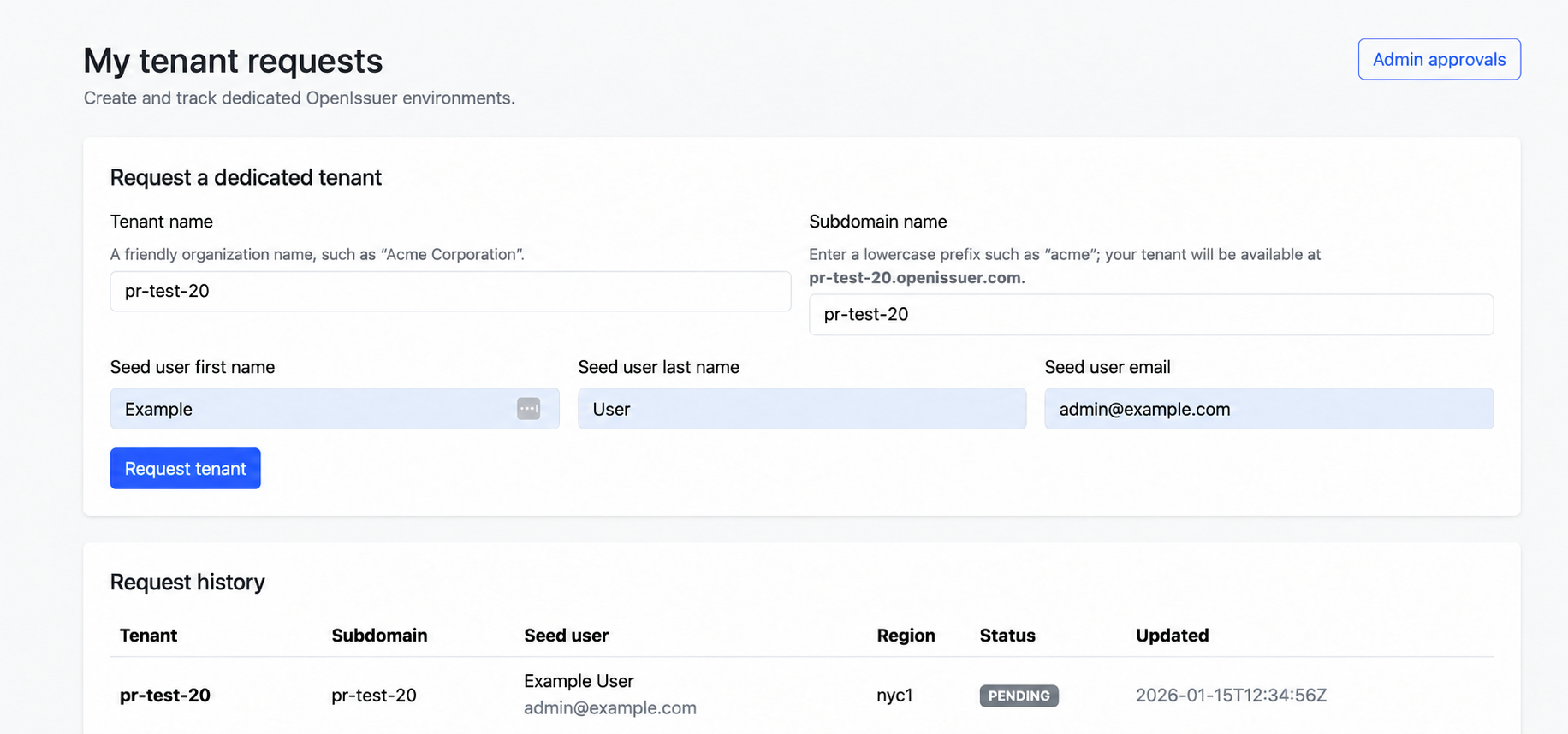
Testing note: The summit issuer is a disposable test tenant. It may be unavailable while provisioning or retirement is being tested, and its hostname may change over time.
Platform administration
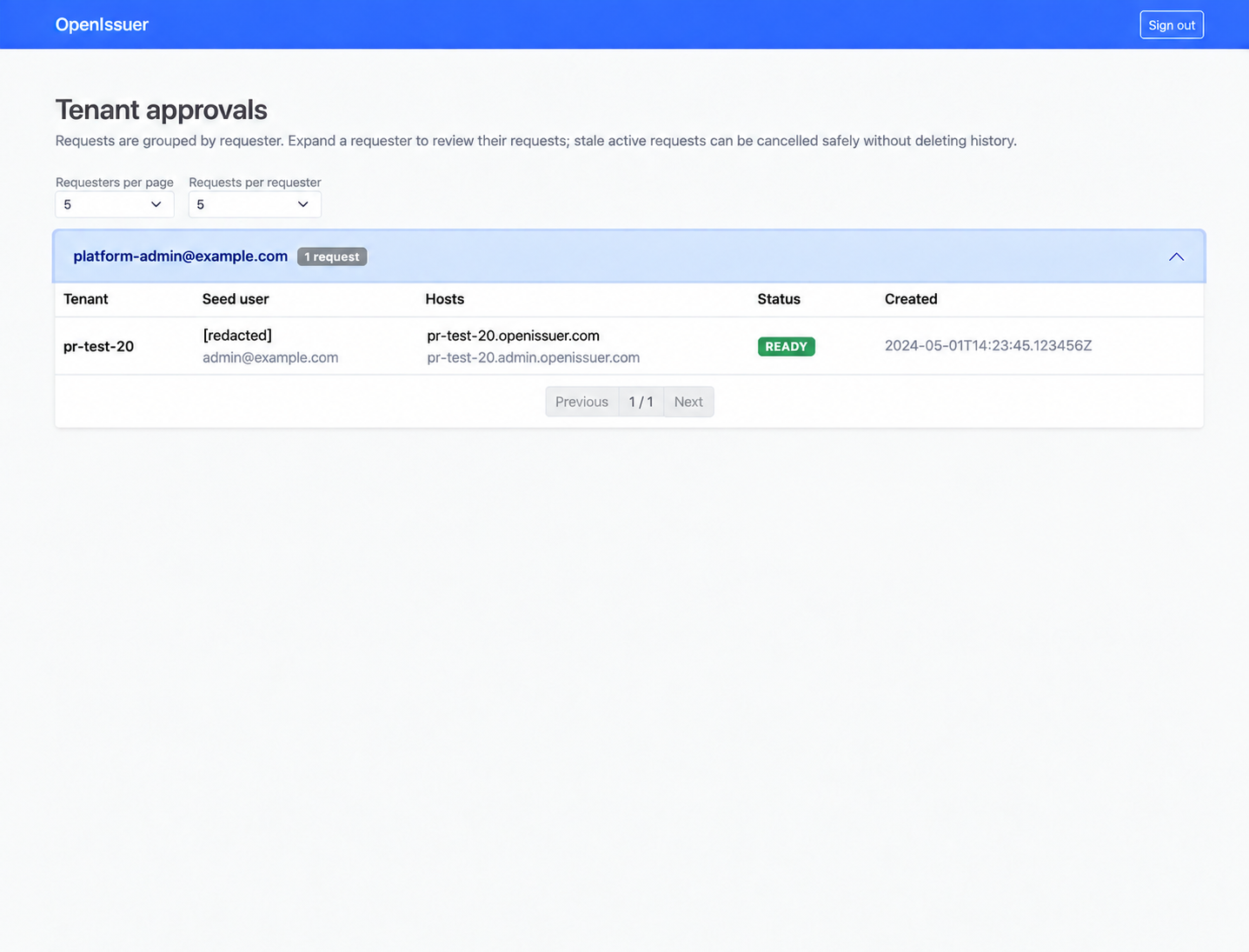
Review the request
A platform administrator reviews the request in the approvals view before provisioning begins. The example below uses summit; seed first and last names are redacted.
Request statuses
PENDING means the request was submitted. VALIDATING means the provisioning workflow is checking the generated configuration. PROVISIONING means the infrastructure is being created. READY means the tenant URLs are available. Failed or cancelled requests can be reviewed before submitting a new request.